With rekordbox CloudDirectPlay, you can load and play audio files you’ve previously uploaded to your cloud storage onto the unit. You can also access audio files from a streaming service (Apple Music, TIDAL) without entering a password on this unit.
•Use Cloud Library Sync to upload audio files to your cloud storage. You can then play the uploaded files via your PC/Mac, mobile device, or this unit.
•For information on Cloud Library Sync, see the Cloud Library Sync Operation Guide.
For information on how to manage audio files uploaded to your cloud storage, refer to the website at the URL below.
rekordbox version
Install the latest version of rekordbox to use rekordbox CloudDirectPlay with this unit.
Subscription
You can use rekordbox CloudDirectPlay with all rekordbox subscription plans, including the Free plan.
•For information on rekordbox plans, see the plan page at the URL below.
Cloud storage service
rekordbox CloudDirectPlay uses the cloud storage service used by Cloud Library Sync.
•Cloud Library Sync and rekordbox CloudDirectPlay support Dropbox and Google Drive.
•For more information, see Operation Guides for Cloud Library Sync and rekordbox CloudDirectPlay.
Transmission speed
The time it takes to sync your library and load audio files via rekordbox CloudDirectPlay depends on the speed of your internet connection. We recommend a line speed of 20Mbps or faster for using rekordbox CloudDirectPlay.
Personal use
With rekordbox CloudDirectPlay, you can use your rekordbox library on multiple PC/Mac computers, mobile devices, and this unit, but you can’t share your library with other users.
Setting up rekordbox CloudDirectPlay
Before using rekordbox CloudDirectPlay, perform the following procedure on rekordbox for Mac/Windows or rekordbox for iOS/Android.
For rekordbox for Mac/Windows
1Click  at the top right of the screen of rekordbox for Mac/Windows.
The [Preferences] window opens.
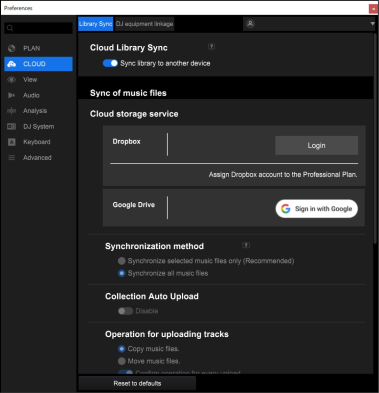
2Click the [Library Sync] tab in the [CLOUD] category.
3Check if [Sync library to another device] is turned on in [Cloud Library Sync].
4Click the [DJ equipment linkage] tab in the [CLOUD] category.
5Turn on [Use rekordbox CloudDirectPlay] in [Cloud Analysis / rekordbox CloudDirectPlay].
The conversion of the library starts on the cloud server.
After the conversion completes, [ Auth] (authentication button) is displayed on the right of the device name in the tree view.
•Depending on the number of audio files in the library, it may take some time to convert the library.
•If the library conversion fails, [Use rekordbox CloudDirectPlay] is automatically turned off. If the conversion error happens repeatedly, contact us for support via the URL below.
•If you turn off [Use rekordbox CloudDirectPlay], the authentication for all devices used with the same account is canceled.
•If you turn off [Use rekordbox CloudDirectPlay] and turn it on, the library is converted again.
For rekordbox for iOS/Android
1Tap  at the top right of the screen of rekordbox for iOS/Android.
The login screen appears.
2Enter your login email address and password.
3Tap at the top right of the screen.
The [Account Information] screen appears.
4Tap [Activate] and [Cloud Library Sync] to turn them on.
5Log in to Dropbox or Google Drive.
6On the [Account Information] screen, tap [rekordbox CloudDirectPlay] to turn it on.
Authentication device for rekordbox CloudDirectPlay
Connect a USB storage device used for rekordbox CloudDirectPlay authentication to your PC/Mac and perform the authentication procedure below.
■Authenticating the USB storage device
1Connect the USB storage device to your PC/Mac.
2Click [ Auth] (authentication button) on the right of the device name in the tree view.
After the authentication completes, [ Auth] (authentication button) changes to  (authenticated icon).
■Deauthenticating the USB storage device
1Click (authenticated icon) on the right of the device name in the tree view.
The USB storage device is deauthenticated.
•If the USB storage device has been authenticated with a rekordbox account other than the one you’re currently using, perform the procedure with the other account.
•If the USB storage device has been authenticated with another user’s account, connect the USB storage device to the PC/Mac of the user who performed the authentication for the device, then deauthenticate it.
•You can also deauthenticate the device via the rekordbox website if you access it through rekordbox for Mac/Windows or rekordbox for iOS/Android when logged in with the account that authenticated it. For details, refer to the FAQ at the URL below.
https://rekordbox.com/support/faq/clouddirect-7/#faq-q700034
■Deauthenticating the USB storage device from the website
You can deauthenticate the USB storage device from the website, for example, if you lose the device.
1Click at the top right of the screen of rekordbox for Mac/Windows.
2Click the [DJ equipment linkage] tab in the [CLOUD] category.
3Click [Devices in use and DJ equipment currently logged in].
The website is displayed in the browser.
4Follow the instructions on the website to deauthenticate the device.
•You can’t deauthenticate devices authenticated with other accounts. You’ll always need to perform the procedure with the account which authenticated the device.
Checking the internet connection
When rekordbox CloudDirectPlay is available, the Wi-Fi connection status icon is displayed on the [SOURCE] screen of the unit.
•You can’t use rekordbox CloudDirectPlay when  (Wi-Fi off) is displayed. If this is the case, check the internet connection.
•To connect to the internet, connect the unit to a router using the built-in wireless LAN (Wi-Fi).
Logging in to rekordbox CloudDirectPlay
■Using an authentication USB storage device
1Connect the authentication USB storage device for rekordbox CloudDirectPlay to the unit.
You are automatically logged in and can use rekordbox CloudDirectPlay.
■Using the deviceless authentication (QR code)
1Touch [SOURCE] on the title/status bar.
The [SOURCE] screen appears.
2Touch [Log in cloud].
A QR code is displayed.
•Select [Stay logged in] to store your account information on the unit so you can skip the authentication process.
3Scan the QR code with the camera on your mobile device and follow the on-screen instructions to log in.
Logging out of rekordbox CloudDirectPlay
■When using an authentication USB storage device
1Disconnect the authentication USB storage device from the unit.
You are logged out of rekordbox CloudDirectPlay and streaming services (Apple Music, Beatport, TIDAL).
⇨Disconnecting a USB storage device
■When not using an authentication USB storage device
1Press the [SOURCE] button.
The [SOURCE] screen appears.
2Touch [LOG OUT] for rekordbox CloudDirectPlay you are logged in to.
You are logged out of rekordbox CloudDirectPlay and streaming services (Apple Music, Beatport, TIDAL).
Playing audio files via rekordbox CloudDirectPlay
When rekordbox CloudDirectPlay is selected on the [SOURCE] screen, audio files uploaded to your cloud storage can be played from the browse screen of the unit.
•The time it takes to load audio files depends on the speed of your internet connection. You can view the loading progress in the overall waveform on the waveform screen.
•The following playback functions are only available for loaded audio files.
–Memory Cue/Loop
–Hot Cue/Loop point
•Audio files are loaded one by one from the track list. The following functions aren’t available.
–Track Search
–[Continue] in Play mode
•Intelligent playlist isn’t available for rekordbox CloudDirectPlay.
•While using rekordbox CloudDirectPlay, any track information changed by other rekordbox CloudDirectPlay or Cloud Library Sync devices used with the same account isn’t reflected until you log out of rekordbox CloudDirectPlay and log in again.
Using the unit with streaming services (Apple Music, Beatport, TIDAL)
If you create playlists with tracks from streaming services (Apple Music, Beatport, TIDAL) using rekordbox and upload them to your cloud storage, you can load and play them on this unit.
Log in to rekordbox CloudDirectPlay and streaming services (Apple Music, Beatport, TIDAL) to use the tracks.