Top panel
1.MIC section
2.MIXER SETTINGS button
⇨Changing the settings from the Mixer Settings screen
3.Touchscreen
4.Browse section
5.DECK SETTINGS button
⇨Changing the settings from the Deck Settings screen
6.MASTER LEVEL knob
⇨Channel section/master section
7. button
Turns the unit on and off.
•A Confirmation message appears on the touchscreen when turning the unit off.
8.Deck section
9.Jog wheel
A sensor is built into the top of the jog wheel. Do not place anything on it or apply strong force to it.
10.Headphones section
11.Channel section/master section
⇨Channel section/master section
12.Beat FX section

1.Kensington security slot
Connect a cable lock.
2.USB storage device port
⇨Connecting a USB storage device
•Use a certified USB cable no longer than 3 m.
3.USB port (for PC/Mac, mobile devices)
Connect a PC/Mac or mobile device.
•Connect a USB cable to the port when using rekordbox for Mac/Windows, rekordbox for iOS, DJM-REC, Serato DJ Lite, Algoriddim djay, or Algoriddim djay Pro.
•You can connect an iPhone/iPad that has a USB Type-C port.
•Use a certified USB cable no longer than 3 m.
•DJing via USB cable connection is only supported for iOS.
4.MASTER 1 terminals (balanced XLR)
Connect to analog input terminals on a power amplifier or powered speaker, etc.
•Use the terminals for balanced output only. Connecting the terminals to unbalanced inputs (RCA, etc.) with an XLR-RCA conversion cable (conversion adapter), etc. results in unwanted noises and/or poor sound quality.
•Do not connect a power cord from another product to the terminals.
•Do not connect to a terminal that can supply phantom power.
•Use the [MASTER 2] terminals for unbalanced input (RCA, etc.).
5.MASTER 2 terminals (RCA)
Connect to analog input terminals on a power amplifier, etc.
6.MIC terminal (TRS)
7.USB port (for power supply)
Connect to a power outlet with the supplied AC adapter (power cord).
|
•Never use the AC adapter if its USB cable connector (terminal) is bent or broken. •Insert the USB cable connector straight into the USB port. •Be careful not to allow liquids (sweat or water) or foreign substances (dirt, dust, metal pieces, etc.) to adhere to the connector (terminal) of the USB cable. •Make sure no load is put on the cable and connector of the AC adapter. Place the unit and the adapter at the same level. |
 CAUTION
The title/status bar is displayed at the top of the screen.

1.SOURCE
Displays the [SOURCE] screen (select a source to play a track from).
2.BROWSE/TAG LIST/PLAYLIST
Displays the browse screen ([BROWSE], [TAG LIST], [PLAYLIST]).
•Touch the screen title to display the waveform screen.
⇨Playback screen (waveform screen)
3.SEARCH
Displays the Search screen.
•Touch the screen title to display the waveform screen.
⇨Playback screen (waveform screen)
4. (Info)
Displays or hides the information of the selected track.
5.Master level indicator
⇨Adjusting the master sound volume
6.Status display
Displays the following statuses.
—Wi-Fi connection status ( ,
,  ,
,  ,
,  : Wi-Fi on/signal strength,
  : Wi-Fi off)
—Bluetooth connection status ( : Bluetooth on/connected,
  : Bluetooth off)
7. (Menu)
Displays the menu for each screen.
•Touch [UTILITY] to display the [UTILITY] screen.
Touch [SOURCE] on the title/status bar to display the source selection screen.
1.Source icon
Displays the connected source.
2.Source name/status
Displays the source name and status.
3. (Info)
Displays or hides the information of the selected device.
4. (Device settings)
Select a device or cloud to set the following.
—[Key]: Sets the key display format saved on the selected USB storage device.
—[Background Color]: Sets the background color saved on the selected storage device. This setting is also applied to colors for a part of the touchscreen.
5.MY SETTINGS LOAD
Calls up the Utility settings and some other settings saved on the selected storage device.
⇨Calling up My Settings saved on a USB storage device
6.Source information
Displays the information of the selected source.
•The following function is available when a USB storage device is selected.
–[MY SETTINGS LOAD]: Calls up the Utility and other settings saved in the selected USB storage device.
Touch [BROWSE], [TAG LIST], or [PLAYLIST] on the title/status bar to display the browse screen (track list).
You can browse files on a USB storage device and the rekordbox library in your cloud storage via rekordbox CloudDirectPlay or on a connected PC/Mac (rekordbox for Mac/Windows) or mobile device (rekordbox for iOS/Android) connected via rekordbox Link Export.
•If you browse a USB storage device that doesn’t contain a rekordbox library on the [BROWSE] screen, the folder and track lists are displayed in a hierarchical structure.
•Touch the screen title ([BROWSE], [TAG LIST], or [PLAYLIST]) again to display the waveform screen.
⇨Playback screen (waveform screen)
When you touch [BROWSE]
1.Source icon
Displays the icon of a device selected on the [SOURCE] screen.
2. (Back)
Displays the next level up.
3.Category
Displays the categories.
•Go to [Preferences] in rekordbox for Mac/Windows or [Settings] in rekordbox for iOS/Android to choose the categories you want to display.
4.Track list
Displays preview waveforms, artwork, and a track list of the selected hierarchical level or playlist.
•Touch a waveform in the [Preview] column to monitor the sound before loading the track.
⇨Monitoring sound before loading a track (Touch Preview)
•Touch an item in the title row to sort the list.
•Touch  on the title row to display the sub-column selection screen and select a sub-column to be displayed (go to [Preferences] in rekordbox for Mac/Windows to set sub-columns you want to display in the selection list).
5. (Info)
Displays the information for the loaded track.
6. (Preview)
Displays or hides the [Preview] column.
7. (Track filter/Edit)
Narrows down tracks by BPM, key, or the tag information, etc. added by rekordbox.
8. (Edit)
Edits playlist.
■Playback screen (waveform screen)
The waveform screen appears if the screen title is touched when the [BROWSE], [TAG LIST], or [PLAYLIST] screen is displayed.
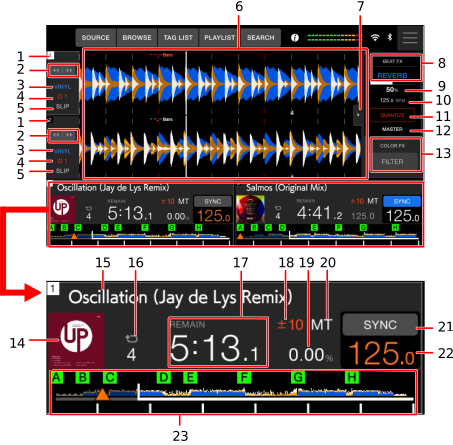
Deck information panel
1.Deck number
Displays the active deck number in white.
2.
Displays or hides the [BEAT JUMP] panel.
3.VINYL
Displayed in blue when Vinyl mode is turned on and in gray when it’s turned off.
⇨Adjusting the playback starting and stopping speeds (for Vinyl mode)
4.Q (Quantize for deck)/number of beats for Quantize
Displays [Q] and the number of beats set for Quantize in red when Quantize for the deck is turned on and active, or displays them in gray when Quantize isn’t active regardless of whether it’s turned on or off.
•You can change the number of beats for Quantize in [Quantize Beat Value] on the [DECK SETTINGS] screen.
5.SLIP
Displayed in blue when Slip is turned on and in gray when it’s turned off.
Enlarged waveform
6.Enlarged waveform
Displays the enlarged waveform, cue points, loop points, Hot Cue points, and countdown display etc. that have been analyzed by rekordbox.
—Zoom mode: Zooms in and out of the upper and lower waveforms at the same time.
—Grid Adjust mode: Adjusts the beatgrid of the track loaded in the active deck.
•You can change the waveform color in [MY SETTINGS LOAD] on the [SOURCE] screen or in [Waveform Color] on the [DECK SETTINGS] screen.
FX information panel
7.FX tab
Displays or hides the effect information panel.
8.Beat FX
Displays the selected Beat FX (effect name).
9.BEAT
Displays the number of beats set for the effect.
10.BPM
Displays BPM (Beats Per Minute, i.e. tempo) for Beat FX.
In Auto mode, the automatically detected BPM is displayed. In Manual Setting mode, the BPM is displayed in green.
11.QUANTIZE (for Beat FX)
Displayed in red when Quantize for Beat FX is turned on and active or in gray when Quantize isn’t active regardless of whether it’s turned on or off.
12.CH SELECT
Selects the channel to apply Beat FX to.
13.SOUND COLOR FX
Displays the selected Sound Color FX.
Overall waveform/playback information
14.Artwork
Displays artwork for a loaded track.
15.Track name
Displays the track name for the loaded track.
16.Number of beats for a loop
Displays the number of beats set for a beat loop or a loop playing.
17.Time display (minutes, seconds, msec)
Displays remaining time or elapsed time. Touch to switch the time display between remaining time ([REMAIN]) and elapsed time ([TIME]).
18.Playback speed adjustment range
Displays the adjustable range from the original playback speed.
⇨Adjusting the playback speed (tempo control)
19.Playback speed
Displays the playback speed set by the TEMPO slider.
20.MT
Displayed in red when Master Tempo is turned on and in gray when it’s turned off.
21.SYNC
Turns on or off Beat Sync.
22.BPM
Displays BPM (beats per minute, i.e. tempo) for the track playing.
•BPM is displayed in orange when the deck is set as the sync master.
•The measured value may differ from that measured by our DJ mixers due to differences in the measurement methods. This isn’t a malfunction.
23.Overall waveform
Displays the overall waveform, cue points, loop points, and Hot Cue points, etc. that have been analyzed by rekordbox.
You can start playback from a point you touch on the waveform.
⇨Playing a track from the touched point on the overall waveform
•The indicators on the overall waveform indicate the following.
–Playing address: Shows the track as a bar graph (horizontal line). The current playback point is indicated with a white vertical line on the bar graph.
When the time display is set to [TIME], the graph lights up from the left to indicate elapsed time. When the time display is set to [REMAIN], the graph goes dark from the left, so the remaining part of the track stays lit up.
–Scale display (30-second interval): Displays scales at 30-second intervals below the playing address for tracks less than 5 minutes long.
–Saved cue/loop points, Hot Cue/Loop points: Indicates cue/loop points and Hot Cue/Loop points saved in the track with marks above the waveform.
–Cue/loop points: Indicates cue/loop points set in the track with marks below the waveform.
•You can change the waveform color in [MY SETTINGS LOAD] on the [SOURCE] screen or in [Waveform Color] on the [DECK SETTINGS] screen.
•You can set different colors for saved cue/loop points and Hot Cue/Loop points in rekordbox.
■Basic operations on the touchscreen
Use the rotary selector or touch the screen for basic operations.
The following functions are available.
•Press the [BACK] button to display the next level up (previous screen).
The following functions are available.