1.BACK button
Displays the next level up.
2.TAG TRACK button
Adds a track to the tag list.
3.Rotary selector
Moves the cursor or confirm the selection.
Selecting a source
1Touch [SOURCE] on the title/status bar.
Sources connected to the unit are displayed on the [SOURCE] screen.
2Select a source.
This feature is only available when browsing the rekordbox library and tracks via StreamingDirectPlay.
1Touch [SEARCH] on the title/status bar.
The Search screen appears.
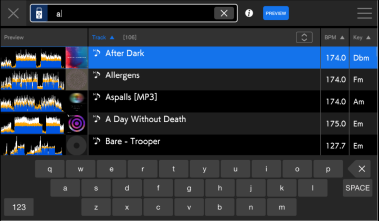
2Enter a keyword using the keyboard.
Tracks including the keyword are displayed in the list.
•You can specify multiple keywords by separating them with a space.
The unit supports 2 jump modes.
1Press and hold the rotary selector when the alphabetical order list is displayed.
Alphabet Jump mode turns on, and the first character of the highlighted track or category is displayed on the screen.
•A to Z, 0 to 9, and some symbols are displayed in Alphabet Jump mode.
2Turn the rotary selector to scroll the screen.
The cursor jumps to the track or category whose first character is the same as the displayed character.
•The cursor doesn’t jump when there are no tracks or categories whose first character is the same as the displayed character.
1Press and hold the rotary selector when a list other than the alphabetical order list is displayed.
Page Jump mode turns on.
2Turn the rotary selector to scroll the screen.
The cursor jumps to the list on each page.
You can narrow down tracks by BPM, key, or the tag information, etc. added by rekordbox. This feature is only available when browsing the rekordbox for Mac/Windows library.
A track list is displayed.
2Touch and hold  (Track filter/Edit).
The Track Filter editing screen appears.
3Specify the filter conditions.
•You can choose BPM, key, rating, color, or the tag information (My Tag) added by rekordbox as filter conditions.
•Touch to add a check mark to enable the filter conditions.
•Touch [MASTER DECK] to read the BPM and key of the track playing on the deck set as the sync master.
•The filter conditions are saved independently for each USB storage device.
•Touch to close the Track Filter editing screen.
4Touch (Track filter/Edit) to turn the filter on.
The tracks are narrowed down by the specified conditions.
■Searching by key of the track playing
The key icons of tracks which are good matches with the key (related key) of the track loaded to the master deck are displayed in green.
•This function isn’t available when no deck is set as the sync master.
Monitoring sound before loading a track (Touch Preview)
You can monitor the sound of a track before loading the track.
1Connect headphones to the unit.
2Touch the waveform displayed in the track list.
Monitor the sound from the touched point with your headphones.
•You can monitor the sound of a track while touching the waveform even when outputting the sound of a track that’s playing on the unit.
•You can’t monitor the sound of tracks which can’t be loaded to the decks.
1Select a track in the track list.
[LOAD 1] or [LOAD 2] is displayed.
2Touch [LOAD 1] or [LOAD 2].
The track is loaded to the corresponding deck.
•You can’t load another track while a track is playing when [Load Lock] is set to [Lock] in the Utility settings. Set it to [Unlock], or press the  button to pause playback, and then load another track.
•When Auto Cue is turned on, playback is paused at the start of a track. Press the button to start playback.
Tracks played for about 1 minute are recorded in the History (playback list) (up to 999 tracks).
•A new History is automatically created on a USB storage device when it’s connected to the unit.
•If you play a track more than once in succession, it may not be recorded in History.
•The information such as name of tracks recorded in History is displayed in green (indicates that the track has been played).
•You can create a playlist from the History using rekordbox. For details, refer to the rekordbox (Mac/Windows) Instruction Manual.
■Viewing History
1Touch [BROWSE] on the title/status bar.
The [BROWSE] screen appears.
2Touch [HISTORY] in the category.
The History list is displayed.
■Deleting History
1Select a History you want to delete in the History list.
2Touch  (Menu) on the title/status bar.
The menu is displayed.
3Touch [DELETE] or [ALL DELETE].
—[DELETE]: Deletes the selected History.
—[ALL DELETE]: Deletes all History lists.
•If you create a playlist from the History using rekordbox for Mac/Windows, the HISTORY is deleted from the USB storage device.
You can tag a track you want to play next or tracks you think will work well in your performance and review them via the Tag List.
•Up to 100 tracks can be registered to the Tag List on each USB storage device.
•A track can’t be registered to a Tag List more than once.
1.Source icon
Displays the icon of a source selected on the [SOURCE] screen.
2.Tag list
Displays the Preview waveform, artwork, serial number, and track list in the taglist.
•Touch the waveform in the [Preview] column to monitor the sound before loading a track.
⇨Monitoring sound before loading a track (Touch Preview)
•Touch an item in the title row to sort the list.
•Touch  on the title row to display the sub-column selection screen and select a sub-column to be displayed. (To set sub-columns you want to display in the selection list, go to [Preferences] in rekordbox for Mac/Windows.)
3. (Preview)
Displays or hides the [Preview] column.
4. (Global)
Turns on and off Global.
—When Global is turned on: Tracks are registered to Tag Lists on storage devices, rekordbox Cloud, and streaming services at the same time.
—When Global is turned off: Tracks are registered to a Tag List on either a storage device, rekordbox CloudDirectPlay, or a streaming service.
■Registering a track to the Tag List
•You can add tracks included in a folder or playlist to the Tag List instantly by selecting a folder or playlist.
2Press the [TAG TRACK] button.
A check mark is displayed for the tracks registered to the Tag List.
■Deleting a track from the Tag List
1Highlight a track.
2Press and hold the [TAG TRACK] button.
The track is deleted from the Tag List.
Deleting all tracks at once
1Touch [TAG LIST] on the title/status bar.
The [TAG LIST] screen appears.
2Touch (Menu) on the title/status bar.
The menu is displayed.
3Touch [REMOVE ALL].
All tracks in the Tag List are deleted.
•If you delete a track from the Tag List while playing, the track continues to play until the end. The next track won’t play.
■Converting the Tag List to a playlist
A playlist converted from the Tag List is displayed in the [PLAYLIST] category.
•You can’t convert the Tag List to a playlist if the rekordbox library isn’t saved on the USB storage device or in rekordbox CloudDirectPlay.
•If a mixture of tracks – some managed and some not managed by rekordbox – are registered in the Tag List, only the tracks managed by rekordbox are converted to a playlist.
1Touch [TAG LIST] on the title/status bar.
The [TAG LIST] screen appears.
2Touch (Menu) on the title/status bar.
The menu is displayed.
3Touch [CREATE PLAYLIST].
The Tag List is converted to a playlist with the name [TAG LIST XXX].
Displaying the playlist screen
Touch [PLAYLIST] on the title/status bar to display the [PLAYLIST] screen. You can also display the [PLAYLIST] screen from the browse screen.
1. (Back)
Displays the next level up.
2.Category
Displays the [PLAYLIST] category.
3.Playlist Bank
Displays the playlist when a playlist is registered to a Playlist Bank. With Playlist Banks, you can find a playlist without browsing the folder hierarchy.
⇨Registering a playlist to a Playlist Bank
•Playlist banks are saved to a user’s cloud account in Cloud Library Sync. The saved playlists are automatically called up in compatible devices.
4.Source icon
Displays the icon of a source selected on the [SOURCE] screen.
5.Track list
Displays the Preview waveform, artwork, serial number, and the track list in the playlist.
•Touch the waveform in the [Preview] column to monitor the sound before loading a track.
⇨Monitoring sound before loading a track (Touch Preview)
•Touch an item in the title row to sort the list.
•Touch on the title row to display the sub-column selection screen and select a sub-column to be displayed. (To set sub-columns you want to display in the selection list, go to [Preferences] in rekordbox for Mac/Windows.)
■Registering a playlist to a Playlist Bank
1Highlight a playlist on the [PLAYLIST] screen.
2Select a Playlist Bank whose icon is displayed in gray.
The playlist is registered to the Playlist Bank and the Playlist Bank icon changes to registered display.
•Touch a Playlist Bank with a white icon to display tracks in the registered playlist.
■Deregistering a playlist from a Playlist Bank
1Touch  in the Playlist Bank.
Deregistration mode turns on and is displayed alongside Playlist Bank icons.
2Touch the Playlist Bank to deregister the playlist from.
The playlist is deregistered and deregistration mode turns off.
■Creating/editing/deleting a playlist
2Touch (Menu) on the title/status bar.
The menu is displayed.
—[NEW PLAYLIST]: Creates a new playlist.*1
—[ADD TO TAG LIST]: Adds tracks to a tag list.
—[ADD TO PLAYLIST]: Adds tracks to a playlist.*1
—[RENAME PLAYLIST]: Changes the playlist name.*1
—[DELETE TRACK(S)]: Deletes tracks in a playlist.
—[DELETE PLAYLIST]: Deletes a playlist.
—[DELETE ALL PLAYLIST]: Deletes all playlists.
*1 Supported by CloudDirectPlay only
•Items displayed in the menu differ depending on the screen being used.
3Select an action.
The selected action is applied to the selected track or playlist.
Edit mode
Touch  (Edit) to select multiple tracks in Edit mode.
Touch check boxes or press the [TAG TRACK] button to select multiple tracks.