Follow the procedures below to output and adjust sound.
Channel section/master section
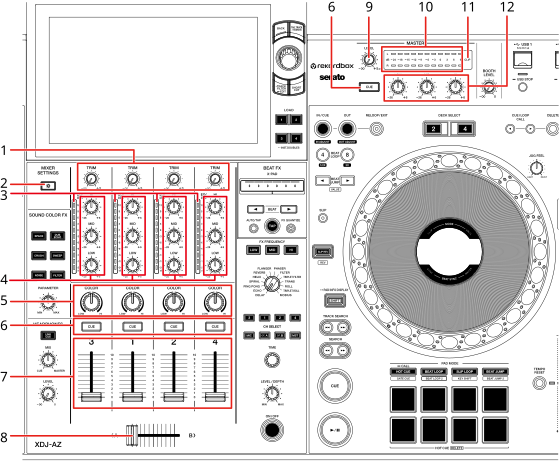
Channel section
1.TRIM knob
Adjusts the volume for the channel input sound.
2.MIXER SETTINGS button
Displays the [MIXER SETTINGS] screen.
⇨Changing the settings on the Mixer Settings screen
3.Channel level indicator
Displays the volume level before the sound passes through the channel fader.
4.EQ/ISO (HI, MID, LOW) knobs
Adjusts the volume of each frequency band.
Each knob adjusts in the following range.
—[HI]: -∞ dB to +6 dB (ISO)/-26 dB to +6 dB (EQ)
—[MID]: -∞ dB to +6 dB (ISO)/-26 dB to +6 dB (EQ)
—[LOW]: -∞ dB to +6 dB (ISO)/-26 dB to +6 dB (EQ)
5.COLOR knob
6.CUE button
7.Channel fader
Adjusts the volume for the channel output sound according to the channel fader curve set with [Channel Fader Curve] in the Utility settings or on the [MIXER SETTINGS] screen.
Moving it up increases the volume, and down decreases the volume.
8.Crossfader
Adjusts the volume balance between the channel output sounds specified with [DECK1/2/3/4 Crossfader Assign] in the Utility settings or [Cross Fader Assign] on the [MIXER SETTINGS] screen according to the crossfader curve specified with [Crossfader Curve].
Master section
9.MASTER LEVEL knob
Adjusts the volume for the master sound.
10.Master level indicator
Displays the volume level of the master sound output to the [MASTER 1] and [MASTER 2] terminals.
11.CLIP indicator
Blinks when excessive volume is output from the [MASTER 1] or [MASTER 2] terminals.
12.Master EQ (HI, MID, LOW) knobs
Adjusts the volume of master sound.
■Adjusting the channel input volume
1Press the [MIXER SETTINGS] button or press and hold the [MENU] button.
The [MIXER SETTINGS] or [UTILITY] screen appears.
2Select the input source in [DECK3/4 Input Select].
•Skip this step when outputting the sound of Deck 1 or Deck 2.
3Turn the [TRIM] knob to adjust the volume for the input sound.
The channel level indicator lights up when sound is input to the channel.
■Adjusting the channel output volume
1Move the channel fader to adjust the volume for the output sound.
2Press the [MIXER SETTINGS] button or press and hold the [MENU] button.
The [MIXER SETTINGS] or [UTILITY] screen appears.
3Select the output destination of the channel in [Crossfader Assign] or [DECK1/2/3/4 Crossfader Assign].
4Move the crossfader to adjust the volume balance of the two channels.
•You don’t need to adjust the crossfader when the output destination is set to [THRU].
■Adjusting the master sound volume
1Turn the [MASTER LEVEL] knob to adjust the volume for the master sound.
The master level indicator lights up when the master sound is output.
1Turn the [EQ/ISO (HI, MID, LOW)] knobs to adjust the volume of each band.
•Set the function (equalizer or isolator) to adjust with the [EQ/ISO (HI, MID, LOW)] knobs in [EQ / ISO] in the Utility settings or on the [MIXER SETTINGS] screen.
2Turn the Master EQ [HI, MID, LOW] knobs to adjust the volume of master sound.
•Set the function ([Master Out] or [Master and Booth Out]) to adjust with the Master EQ [HI, MID, LOW] knobs in [Master EQ] in the Utility settings.
Set the channel fader and crossfader.
1Press the [MIXER SETTINGS] button or press and hold the [MENU] button.
The [MIXER SETTINGS] or [UTILITY] screen appears.
2Set the channel fader curve in [Channel Fader Curve].
1Press the [MIXER SETTINGS] button or press and hold the [MENU] button.
The [MIXER SETTINGS] or [UTILITY] screen appears.
2Select the crossfader curve in [Crossfader Curve].
—: Steeply raises the volume of the sound assigned to the other side as the crossfader is moved from one side ([A] or [B]) to the other (e.g. moving the crossfader away from the [A] side steeply increases the volume of the [B] side).
— : Applies the intermediate setting between
  and .
and .
—: Gradually raises the volume of the sound assigned to the other side as the crossfader is moved from one side ([A] or [B]) to the other, and decreases the volume of the sound on the side it’s moving away from (e.g. moving the crossfader away from the [A] side gradually increases the volume of the [B] side while gradually decreasing the volume of the [A] side).