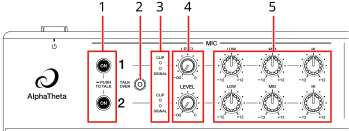
1.ON button
Sets the microphone sound output. The button lights up when the microphone is turned on.
Press and hold to turn Push To Talk on. The microphone is turned on while pressing the button.
2.TALK OVER button
Turns microphone talkover on and off. If sound is input to the microphone when it’s turned on, the volume other than the microphone channel is attenuated.
•You can change the talkover mode setting and attenuation level in [Talkover Mode] and [Talkover Level] in the Utility settings.
3.CLIP/SIGNAL indicator
4.LEVEL knob
Adjusts the volume of sound input from the [MIC 1] or [MIC 2] terminal.
5.MIC EQ (HI, MID, LOW) knobs
Adjusts the volume of sound input from the [MIC 1] or [MIC 2] terminal.
Each knob adjusts in the following range.
—[HI]: -12 dB to +12 dB (10 kHz)
—[MID]: -12 dB to +12 dB (2.5 kHz)
—[LOW]: -12 dB to +12 dB (100 Hz)
1Connect a microphone to the [MIC 1] or [MIC 2] terminal.
2Press the [ON] button to turn the microphone on.
The microphone turns on and the [ON] button lights up.
3Turn the [LEVEL] knob to adjust the microphone volume level.
•Note that turning the knob too far clockwise outputs the sound at a high volume.
4Turn the MIC EQ [HI, MID, LOW] knobs to adjust the volume of each band.
5Speak into the microphone.
Reducing the “howling” noise of a microphone (Feedback Reducer)
When microphone “howling” noise occurs (feedback), the unit detects the relevant frequency and cuts only that frequency band to reduce the “howling” while minimizing the effect on sound quality.
1Press the [MIXER SETTINGS] button or press and hold the [MENU] button.
The [MIXER SETTINGS] or [UTILITY] screen appears.
2Select a mode in [Feedback Reducer].
—[Heavy]: The filter cuts a wide frequency band. Choose this setting when your priority is reducing “howling” noise, e.g. when you’re using a microphone for a speech or to introduce speakers.
—[Light]: The filter cuts a narrow frequency band. Choose this setting when you want to prioritize sound quality, e.g. when you’re singing or rapping.
•Select [Off] to turn off [Feedback Reducer].