1.BEAT LOOP (RELOOP) knob
2.SHIFT button
3.CUE button
4. button
Plays or pauses a track.
5.Hot Cue (A to H) buttons
6.TEMPO slider
Play/pause
1Press the button.
—During pause: Starts playing the loaded track.
—During playback: Pauses the track.
•Playback of the next track doesn’t automatically start when [Play Mode] is set to [Single] in the Utility settings.
•Pausing playback in Vinyl mode mutes the sound, and in Normal mode it will output the sound intermittently.
Playing a track from the touched point on the overall waveform
1Touch the overall waveform during pause or while pressing the top of the jog wheel in Vinyl mode.
The loaded track plays from the touched point.
•You can quickly move the playback point by sliding your finger to the point you want on the overall waveform.
1Press the [DECK SETTINGS] button.
The settings of the deck is displayed on the [DECK SETTINGS] screen.
2Touch [SLIP] to turn Slip mode on.
If you turn Slip mode on, normal playback continues in the background (but you can’t hear it) when you perform the following operations.
When you end the operation, Slip is canceled and normal playback starts from the exact point the track would have reached by then.
Adjusting the playback speed (tempo control)
—To the [+] side: Increases the playback speed.
—To the [-] side: Decreases the playback speed.
•Touch [TEMPO ±6/±10/±16/WIDE] (the variable range of the playback speed) for each deck settings on the [DECK SETTINGS] screen to change the variable range in the order of ±6 (0.02%), ±10 (0.05%), ±16 (0.05%), WIDE (0.5%)*.
The adjustable range of [WIDE] is ±100%. The track stops when it’s set to -100%.
* The value in parentheses indicates the adjustment unit.
Adjusting the playback speed without changing the pitch (Master Tempo)
If you turn Master Tempo on, you can change the playback speed of a track using the TEMPO slider without changing the pitch.
1Press the [DECK SETTINGS] button.
The settings of the deck is displayed on the [DECK SETTINGS] screen.
2Touch [MASTER TEMPO] to turn Master Tempo on.
[MT] lights up in red on the waveform screen when Master Tempo is turned on.
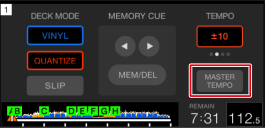
•Touch [MASTER TEMPO] again to turn Master Tempo off.