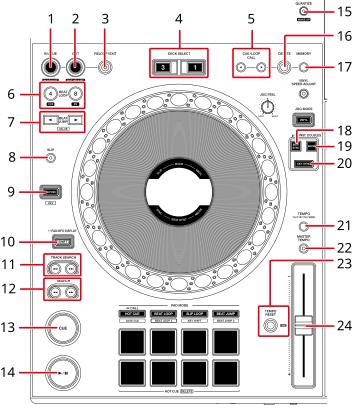
1.IN/CUE (IN ADJUST) button
2.OUT (OUT ADJUST) button
3.RELOOP/EXIT button
4.DECK SELECT buttons
Selects the deck to use.
5.CUE/LOOP CALL  ,
,  buttons
6.4 BEAT LOOP (1/2X), 8 BEAT LOOP (2X) buttons
⇨Using the 4 BEAT LOOP (1/2X) button
7.BEAT JUMP , buttons
8.SLIP button
9.SLIP REV button
Lights up during reverse playback or Slip Reverse.
10.SHIFT button
11.TRACK SEARCH ,  buttons
Jumps to the beginning of a track.
12.SEARCH  ,
,  buttons
Fast forward or fast reverse a track.
13.CUE button
14. button
Plays or pause a track.
15.QUANTIZE (for deck) button
16.DELETE button
17.MEMORY button
18.BEAT SYNC (INST.DOUBLES) button
19.MASTER button
20.KEY SYNC button
21.TEMPO ±6/±10/±16/WIDE button
Sets the variable range of the TEMPO slider.
22.MASTER TEMPO button
Turns Master Tempo on and off.
23.TEMPO RESET button, Tempo Reset indicator
Resets to the track’s original speed regardless of the TEMPO slider’s setting.
The Tempo Reset indicator lights up when Tempo Reset is turned on.
24.TEMPO slider
Play/pause
1Press the [] button.
—During pause: Starts playing the loaded track.
—During playback: Pauses the track.
•Playback of the next track doesn’t automatically start when [Play Mode] is set to [Single] in the Utility settings.
•Pausing playback in Vinyl mode mutes the sound, and in Normal mode it will output the sound intermittently.
Playing a track from the touched point on the overall waveform
1Touch the overall waveform during pause or while pressing the top of the jog wheel in Vinyl mode.
The loaded track plays from the touched point.
•You can quickly move the playback point by sliding your finger to the point you want on the overall waveform.
1Press and hold the [SLIP REV] button.
The button lights up and the loaded track plays in reverse while normal playback continues in the background.
•When the button is released, playback starts from the exact point the track would have reached by then.
Reverse
1Press the [SLIP REV] button while pressing the [SHIFT] button.
The button lights up and the loaded track plays in reverse.
•Acceleration and deceleration of playback according to jog wheel rotation are also reversed.
•Maintaining reverse playback from one track to the next isn’t possible.
•You may not be able to scratch if you perform Track Search or loop playback during reverse playback.
Adjusting the playback speed (tempo control)
—To the [+] side: Increases the playback speed.
—To the [-] side: Decreases the playback speed.
•The variable range of the TEMPO slider changes in the order of ±6 (0.02%) → ±10 (0.05%) → ±16 (0.05%) → WIDE (0.5%) each time you press the [TEMPO ±6/±10/±16/WIDE] button*.
The adjustable range of [WIDE] is ±100%. The track stops when it’s set to -100%.
* The value in parentheses indicates the adjustment unit.
Adjusting the playback speed without changing the pitch (Master Tempo)
If you turn Master Tempo on, you can change the playback speed of a track using the TEMPO slider without changing the pitch.
1Press the [MASTER TEMPO] button to turn Master Tempo on.
The button lights up when Master Tempo is turned on.
•Press the [MASTER TEMPO] button again to turn Master Tempo off.
Monitoring a different part of a track during playback (Touch Cue)
If you touch the overall waveform while a track is playing, you can monitor the sound from the touched point without affecting the output sound.
1Connect headphones to the unit.
2Press the [LINK CUE] button.
3Touch the overall waveform on the waveform screen.
You can monitor the sound from the touched position with your headphones.
•The waveform of the touched point is zoomed in on and displayed as an enlarged waveform.